
Vertical Split Screen Premiere Pro
How to Make a Vertical Split Screen in Premiere Pro Exact 50/50 Stack
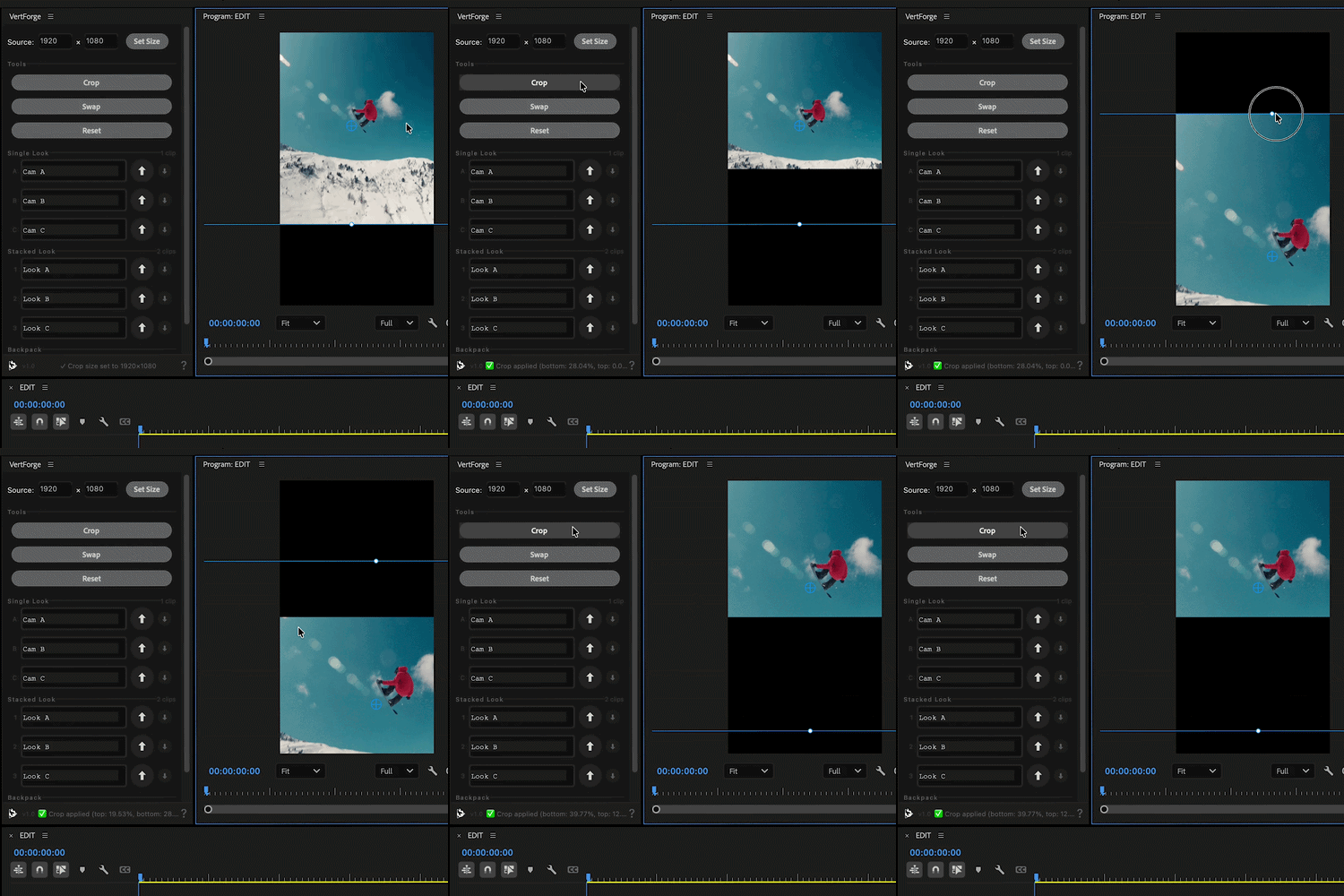
Short answer: To make a vertical split screen in Premiere Pro, stack two clips on separate tracks in a vertical 1080×1920 sequence (9:16 aspect ratio), apply the Crop effect to each clip, crop one clip’s bottom 50% and the other’s top 50%, then reposition each so the two halves meet cleanly at the center line. Getting the split exactly even is the fiddly part if you're resizing or repositioning your clips (even if you're using guides); a plugin like VertForge does the precise 50/50 crop in one click.
What “vertical split screen” means
In a vertical 9:16 frame, like 1080×1920 for Reels, TikTok, or Shorts, a split screen stacks two videos top and bottom, divided by a horizontal center line. This is most common for two-person interviews, podcasts, and reaction-style edits.
Method 1 — The manual way using the Crop effect
- Create a vertical sequence. Go to Sequence Settings and set the frame size to 1080 × 1920.
- Stack your clips. Put the top speaker on V2 and the bottom speaker on V1.
- Crop the top clip. Select the V2 clip, go to Effect Controls → Crop, and set Bottom to about 50% so only the top half remains.
- Crop the bottom clip. Select the V1 clip, apply Crop, and set Top to about 50%.
- Frame each subject. Use Motion → Position, and Scale if needed, to slide each person into their half.
- Check the seam. Zoom in at the middle. Uneven halves, gaps, or overlaps at the center line are the giveaway of a rushed split.
That’s it — but framing and checking the seam are where the time goes. Even if you're using guides.
Why this is tedious
The Crop effect does not know your sequence size, so “50%” rarely lands on the true center on the first try. You end up nudging Position and Scale on both clips, re-checking the seam, and redoing it for every new clip in the edit.
Multiply that across a full podcast episode and it becomes real time lost — for a result that is still mostly eyeballed.
Method 2 — The one-click way with VertForge
VertForge is a Mac and Windows Premiere Pro plugin that reads your real sequence and clip dimensions and crops to an exact 50% split in one click — no guides, no math, no nudging. It crops exact thirds for three-way stacks, too.
Then, once you dial in your stacked layout, VertForge saves that framing as a look — so you can reapply it to any clip in the edit, or swap the framing between clips, in one click each.
Free 7-day trial, no card required. Then $20, once — no subscription. Mac and Windows, Premiere Pro 26.2+.
Try VertForge FreeFAQ
How do I split a video in half vertically in Premiere Pro?
Stack two clips on separate tracks in a vertical sequence, apply the Crop effect to each clip, crop one to the top half and one to the bottom half, then reposition them to meet at the center line. For an exact 50/50 split, VertForge does it in one click.
Can you split screen vertically in Premiere Pro?
Yes. Premiere Pro does not have a dedicated split screen button, but you can create one with stacked tracks and the Crop effect, or use a plugin or preset for speed.
What is the fastest way to make a vertical split screen?
The fastest way is to use a template pack or a plugin. Templates require dropping footage into a preset. VertForge does the exact crops on your actual clips in one click, then saves the layout you dial in so every following clip takes one click.
Try VertForge FreeEdit vertical video in Premiere Pro too?
I built VertForge — a Premiere Pro panel that crops to an exact ½ or ⅓, builds stacked layouts, and reapplies your framing to any clip in one click. Mac and Windows.
Try it free for 7 days → Made by the same editor who wrote this post. $20 once after the trial, no subscription.